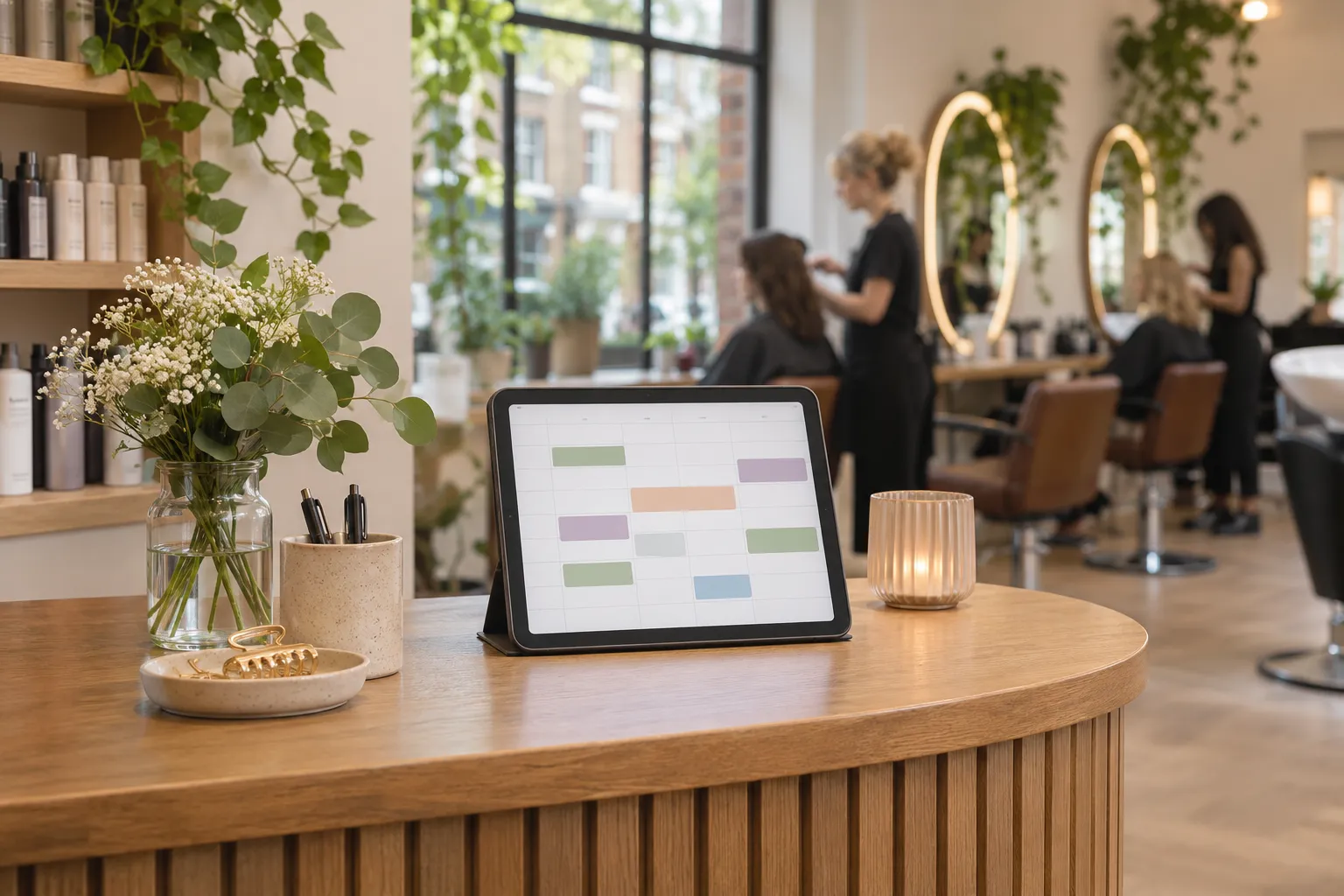
Choose an online booking system that puts website and phone bookings in one diary, checks staff and room availability, and lets customers change appointments under your rules. A hosted booking link is often enough for a simple diary. Compare deposits, reminders and total fees if you manage a team or regularly lose time to missed appointments.
Start with the appointment you sell most often
Take a common service and work out how it fits into a real working day. A treatment that takes 45 minutes may also need ten minutes to clean the room. A longer consultation might be offered by only one person. A mobile appointment may need time to travel. Give those limits names in the system, whether it calls them a buffer, a staff schedule or a resource. Otherwise the online calendar can offer times the team cannot keep.
Give each service a plain name, a duration and an explanation of what the customer gets. Use a price or clear guidance on when a quote is needed. If a job can't be priced or scheduled safely until you've seen it, let the customer book an initial consultation. A quote visit is a valid appointment in its own right.
Choose how customers should book
A booking marketplace can be a useful place for people to discover you. Its pages and search tools already have an audience, and a team that uses its diary every day may have good reason to keep it. Ask which bookings come through discovery and which come from existing customers who could book through your own website. Review what the marketplace charges for each kind of booking and how customers recognise your business when they return.
A link to a hosted diary is a straightforward way to put booking on an existing site. Look at it on a phone and follow the journey from a service page to confirmation. The most important details are whether the customer can recognise the service, find the right appointment and understand the cancellation terms before they confirm.
An integrated booking experience gives you more control over where the journey starts and how you explain the service. That matters if the business needs to collect specific information, make the most of repeat bookings or manage a mix of appointments and enquiries. Ask the provider who can update the booking rules, where the records are held and what you can export if you move.
Compare online booking systems in the UK
Use these advertised UK starting prices to shortlist tools, then run the same test appointment through each. Prices checked in November 2026.
System | Starting subscription | Worth a look if | Check before you switch |
|---|---|---|---|
Free for one location. Plus £29 per location per month | You already take payments with Square | Which plan covers deposits, cancellation rules and shared resources | |
£40 per month plus VAT for the base subscription | You want a diary and a listing where clients can discover you | Extra staff charges and fees if you enable Boost | |
Core bookings included with the free POS plan | You want a booking link and already use SumUp | POS Plus pricing if you need several staff calendars or SMS reminders |
For a like-for-like quote, count bookable staff and locations, estimate how much customers will pay online, and ask what reminders and payment processing will cost. Also check whether any fees are tied to bookings the marketplace brings you. Compare the full cost against what you actually need to run the diary.
Test availability from both sides of the desk
Create a short test day with two members of staff, a lunch break, a blocked period and a booking taken by phone. Check what an online visitor sees. They should see the slots you can offer, while staff should be able to see why another slot is missing. If your day gets busy, the person at reception should be able to add a phone appointment quickly enough to use the same diary. Two separate diaries make it easy for both channels to offer the same slot.
Try a cancellation and a reschedule. See whether the original slot reopens and which messages both sides receive. Ask what happens when a customer selects a time just as somebody else books it. If a service needs a particular room or shared piece of equipment, use it in two test appointments to see whether the system can prevent a clash.
Give customers a way to act when there are no times left. Show the next available day or make it clear how to contact the team. If you later add a waitlist, decide who should be offered the slot first and what happens when they don't respond.
Try the service on a week when one staff member is on leave and ask a colleague to make a phone booking unaided. For example, if a 45-minute treatment needs ten minutes of room cleanup, a 10am appointment should block the room until 10:55, even when a second therapist is free.
How Elkwood handles website and phone bookings in one diary
Here’s a worked example for a small salon. The screenshots show the Elkwood booking interface running in an isolated preview with fictional staff and appointments.
A customer books through the website
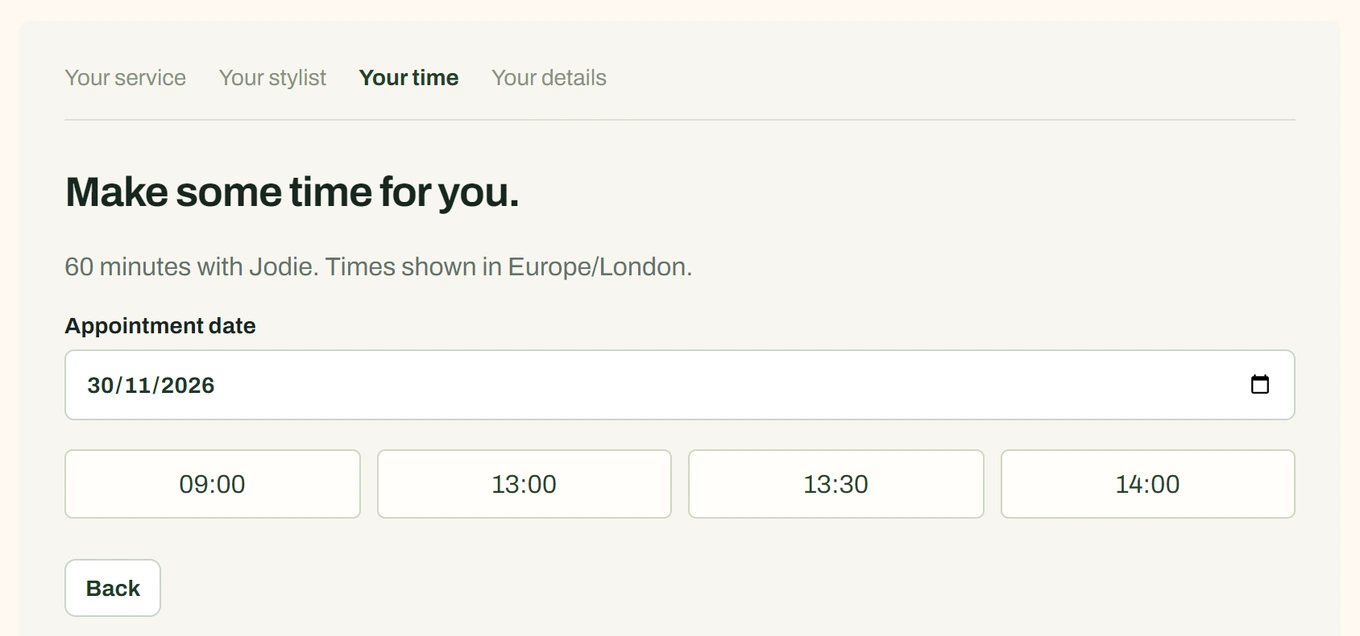
Alex chooses a one-hour cut and finish, selects Jodie and books 10:00. The website offers times for the selected service and stylist. Staff use Team & hours to set who offers each service, which days they work and when they take breaks. They can also use Block time in the diary for time off or an appointment the business needs to keep free.
The receptionist takes a phone booking
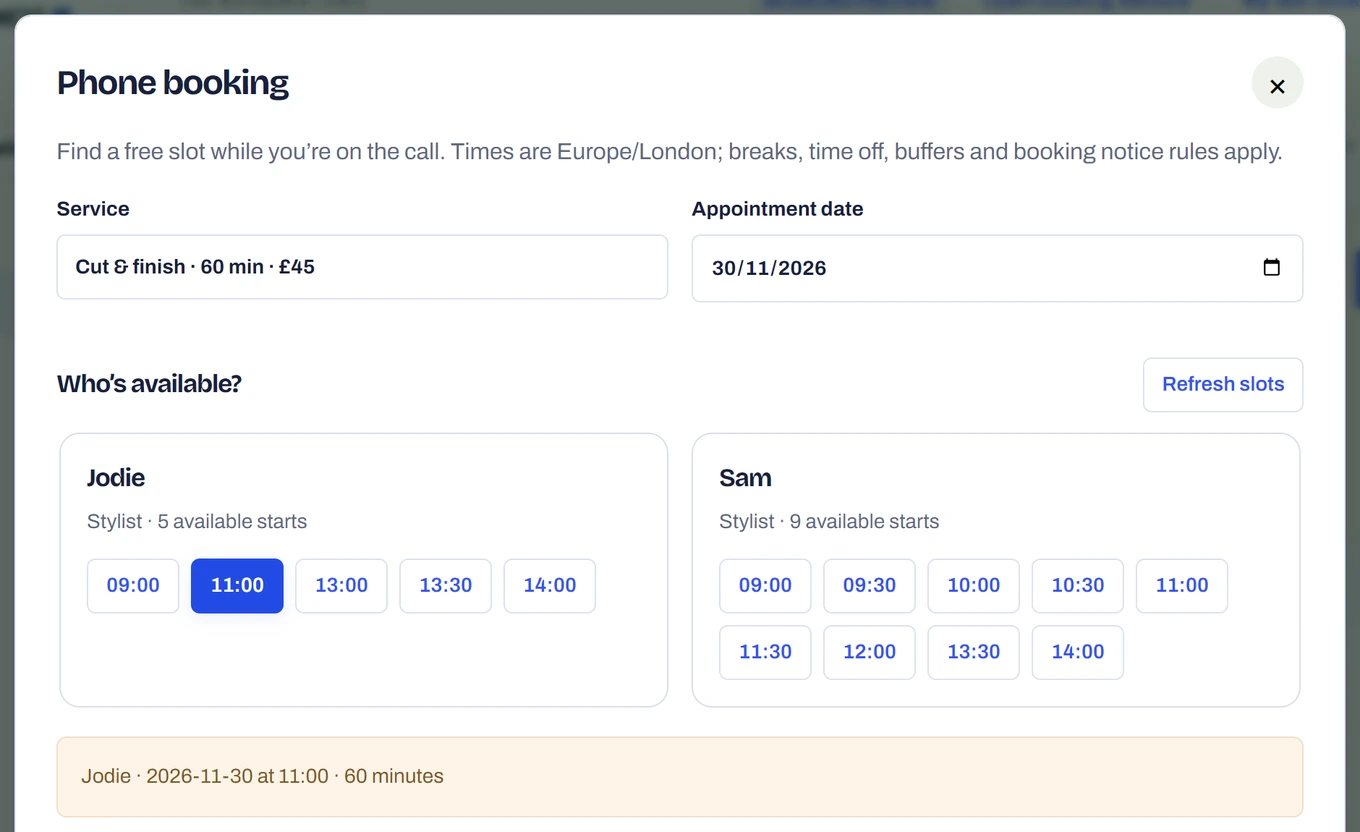
Jamie calls for the same service. The receptionist opens Phone booking from the diary and selects the service and date. It shows available start times for each stylist who offers that service. Jodie’s 10:00 slot is already taken, so the receptionist selects 11:00 for Jamie and saves the booking.
Both bookings appear in the same diary
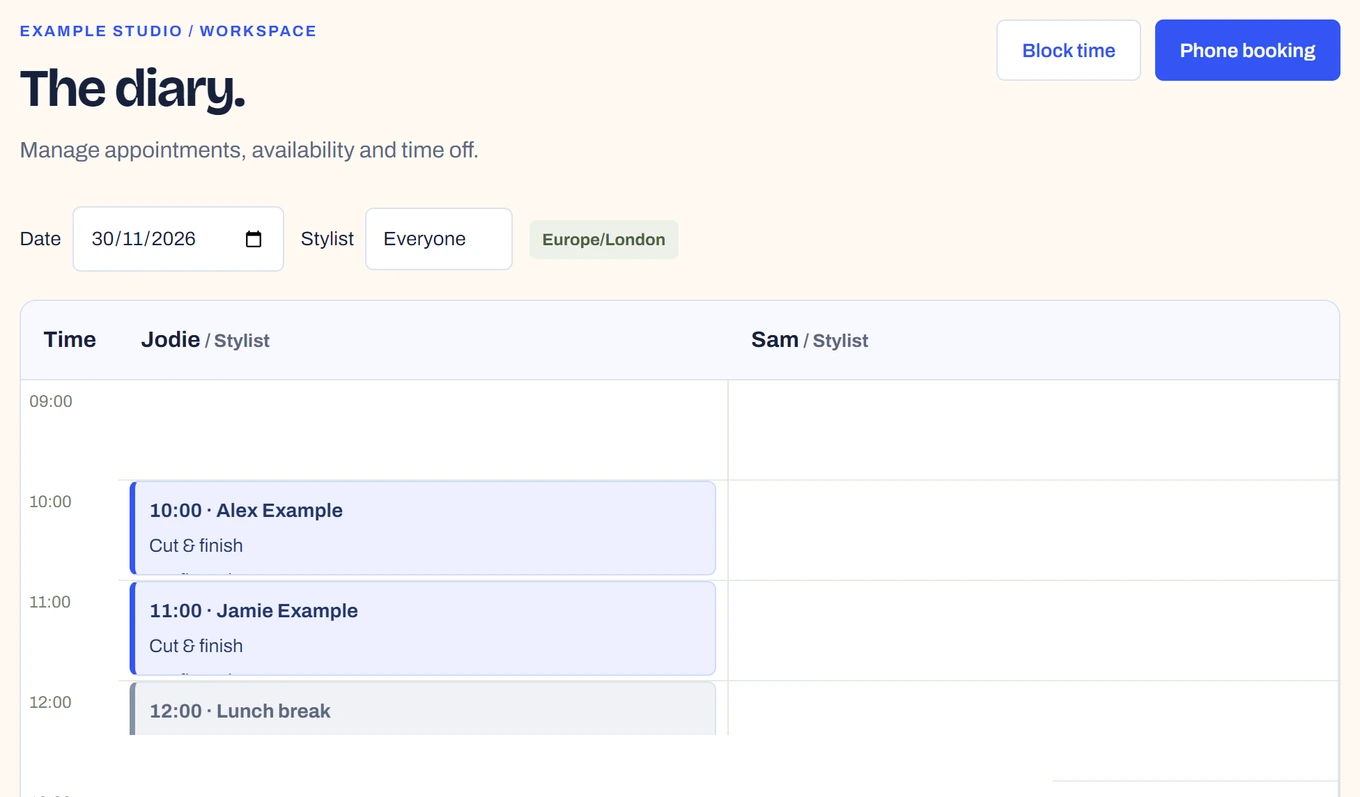
Jodie’s diary shows Alex at 10:00, Jamie at 11:00 and a lunch block at 12:00. Sam has a separate column for their availability. When the next customer picks Jodie online, the website leaves out both booked times and the lunch block. It can still offer slots that fit, such as 13:00.
Decide when money needs to change hands
A card payment at booking can make sense for a fixed-price service or an appointment that is hard to fill at short notice. Other businesses may prefer a deposit, or simply collect payment on the day. Compare who receives the funds, how a refund is handled and how a booking appears if payment fails or the customer closes the payment page. Staff should be able to tell whether an appointment is confirmed.
Write your payment, cancellation and rescheduling terms in plain language and show them before the customer commits. If you take deposits, test a refund and check what appears in both the diary and the payment account. Ask who can change payment settings and how to remove their access when they leave.
Plan a small launch
Start with a few frequently booked services and check the calendar every day for the first week. Keep the old system readable while existing bookings are moved or completed. Test the booking link from your Google profile, social profiles and service pages where you use it. Ask customers to try the journey on their own phone. Staff who know the system can overlook things a first-time visitor finds confusing.
Measure how many enquiries become usable appointments and how often staff need to intervene. If customers keep asking the same question before booking, fix the service description or confirmation. If they select the wrong slot, check the service names and booking rules. These changes are usually easier to judge once you have seen a full working week.
Discuss booking for an Elkwood website
Elkwood Studios can discuss adding an appointment booking system to your business website. Use the form on this page to tell us what people book, how staff share availability and whether you need deposits or phone bookings. We'll explain what we can support and agree the scope with you before you move an existing diary.
If you're putting reservations on a restaurant site, see our restaurant website examples for how menus, opening times and reservations can fit together. Our local SEO guide covers bringing customers to your booking link through Google.